Kardo videos
Short videos that show how Kardo works. Each one is under 90 seconds.
These videos are also in हिंदी
Start here
Read the words
Running a shop means many small jobs every day.
Tell Kardo what you need, in Hindi or English.
For example, email me the news every morning at eight.
Type your sentence, or tap the mic and speak.
Kardo asks at most three questions.
Your plan shows when it runs, what Kardo does, and what you get.
Check the plan, then try it with sample data.
No real message is sent during this test.
You get a live link and a private link.
Use the private link to pause, change, undo, or delete.
Try a contact form, a price alert, or a daily reminder.
Kardo is free, with daily limits.
No login.
Start at kardo dot click.
Read the words
First, Kardo understands your idea.
Then it checks your keys and builds.
Next, it tests with sample data.
No real message is sent.
Finally, your link goes live.
Kardo dot click.
Free.
No login.
Read the words
Open your private link to manage your automation.
Pause stops it.
Start again turns it back on.
Tap Change something and write, change the time to seven am.
Go back to the old version to undo a change.
Delete removes the automation and its saved keys.
Keep this link safe.
It is the only way to make changes.
Kardo dot click.
Free.
No login.
Ideas you can make
Read the words
Email me news every morning.
Every day at 8 am, Kardo emails you the top 5 headlines.
Give the email address where needed.
No extra app connection is needed.
Example: five headlines are ready in your morning email.
This is an example, using sample details.
Check your plan before it goes live.
Tap this idea on kardo dot click.
Read the words
Tell me when a price drops.
Every hour, Kardo checks the price.
If it goes below ₹1,000, you get a Telegram message.
A key from Telegram for your own bot.
Example: the price is now ₹899.
Your chosen limit was ₹1,000.
This is an example, using sample details.
Check your plan before it goes live.
Tap this idea on kardo dot click.
Read the words
A contact form for my shop.
People fill your form.
Kardo saves it in your Google Sheet and emails you.
The link of your Google Sheet, shared with Kardo.
Example: Ramesh asks, do you deliver on Sunday?
This is an example, using sample details.
Check your plan before it goes live.
Tap this idea on kardo dot click.
Read the words
Summarise anything I send, post to Discord.
Send anything to your link.
Kardo makes a short summary with AI and posts it in Discord.
The link of your Discord channel.
Example: closed Monday, fresh sweets Tuesday, free delivery above ₹500.
This is an example, using sample details.
Check your plan before it goes live.
Tap this idea on kardo dot click.
Read the words
A Telegram bot that answers my FAQ.
People message your Telegram bot.
Kardo answers from your FAQ text.
A key from Telegram for your own bot.
Example question: do you deliver?
Answer: yes, free within three kilometres.
This is an example, using sample details.
Check your plan before it goes live.
Tap this idea on kardo dot click.
Read the words
Send a WhatsApp when someone fills my form.
Someone fills your form.
Kardo sends them a WhatsApp confirmation and emails you.
Your WhatsApp Business details from Meta: number ID, account ID and a permanent key.
Example: Sunita, your booking for 25 October is confirmed.
Meta approval can take one to five days.
This is an example, using sample details.
Check your plan before it goes live.
Tap this idea on kardo dot click.
Read the words
Post on my business page every Monday.
Every Monday at 10 am, Kardo posts your message on your Facebook page.
Your Facebook Page ID and a Page key.
Example post: fresh stock this week.
Visit our shop today.
This is an example, using sample details.
Check your plan before it goes live.
Tap this idea on kardo dot click.
Read the words
Summarise emails I forward.
Forward any email to your Kardo address.
You get a short summary back.
Give the email address where needed.
No extra app connection is needed.
Example: electricity bill ₹2,340, due 5 November.
This is an example, using sample details.
Check your plan before it goes live.
Tap this idea on kardo dot click.
Read the words
Sort my form replies into groups.
People give feedback.
AI puts each one in a group.
You see all of them on your page.
Give the email address where needed.
No extra app connection is needed.
Example: cold samosas.
Group: Complaint.
This is an example, using sample details.
Check your plan before it goes live.
Tap this idea on kardo dot click.
Read the words
Tell me when a web page changes.
Every 3 hours, Kardo checks the page.
If the news list changes, you get an email.
Give the email address where needed.
No extra app connection is needed.
Example: a new notice has appeared on your chosen page.
This is an example, using sample details.
Check your plan before it goes live.
Tap this idea on kardo dot click.
Read the words
Daily reminder on Telegram.
Every evening at 9, Kardo sends you a reminder on Telegram.
A key from Telegram for your own bot.
Example: remember to write today’s sales in your book.
This is an example, using sample details.
Check your plan before it goes live.
Tap this idea on kardo dot click.
Read the words
New order form, alert my team on Slack.
A customer fills your order form.
Your team gets a Slack message at once.
The message link of your Slack channel.
Example: Anil ordered two kilograms of flour and one litre of oil.
This is an example, using sample details.
Check your plan before it goes live.
Tap this idea on kardo dot click.
How to connect your apps
Read the words
Get Telegram messages without making your own bot.
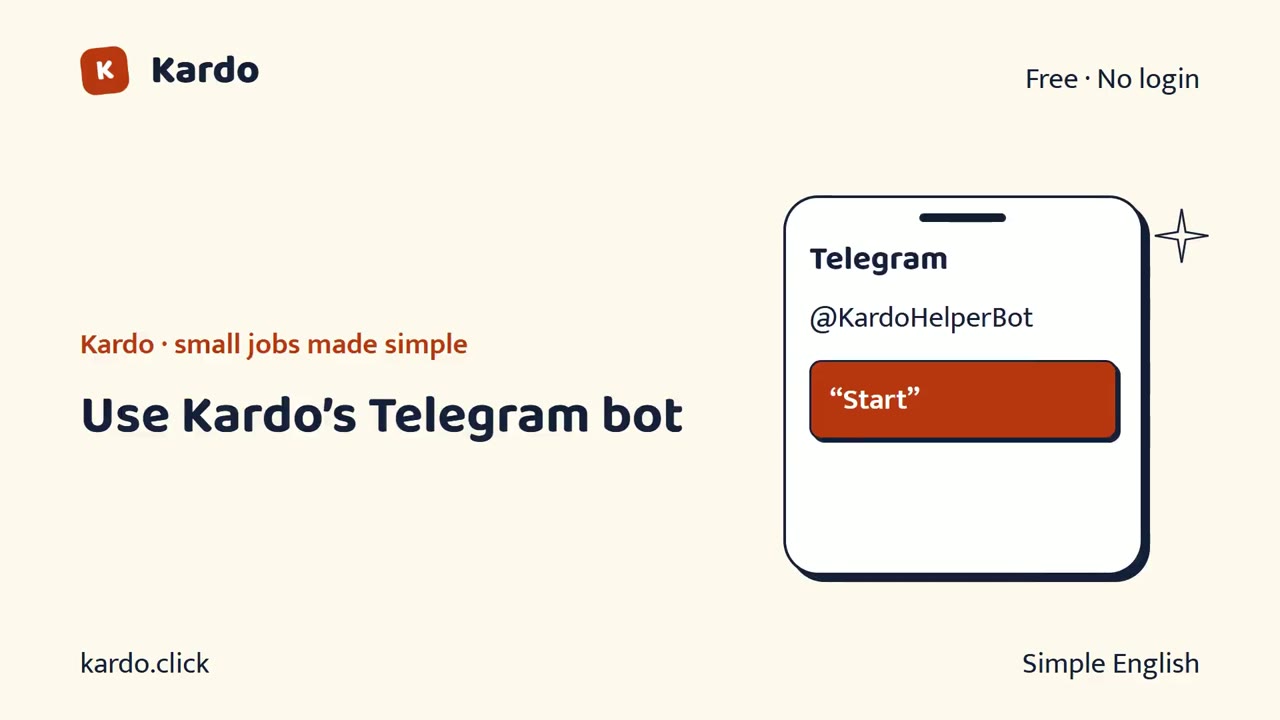
On Kardo, tap Use Kardo’s bot, no key needed.
Telegram opens with KardoHelperBot.
Check the name, then press Start.
Return to Kardo and wait for Connected.
Your phone number is never shared.
There is no key to copy or paste.
Kardo can now send messages to your Telegram.
Check your plan and test with sample data.
Keep your private link safe.
Start at kardo dot click.
Read the words
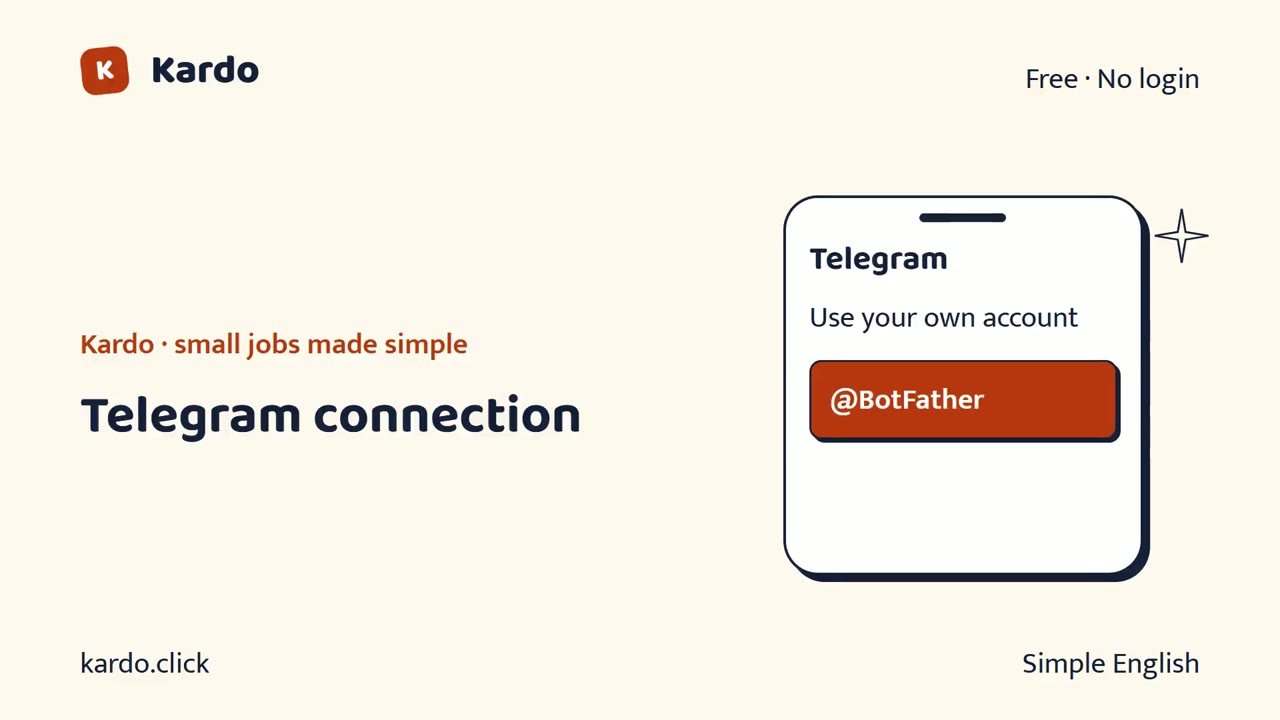
Let us connect Telegram to Kardo.
A key from Telegram for your own bot.
Kardo sends messages to you through your bot.
These are drawings showing the steps.
Use your own account.
Open Telegram and search @BotFather.
Send /newbot and pick any name.
BotFather gives you a long key.
Copy it.
Paste it here.
Open your new bot and press Start.
Tap "Check my key".
Kardo can email you instead.
Keep every secret key private.
Check the details before you continue.
Kardo tests with sample data.
No real message goes out during the test.
Save your private link to change or pause later.
Visit kardo dot click.
Read the words
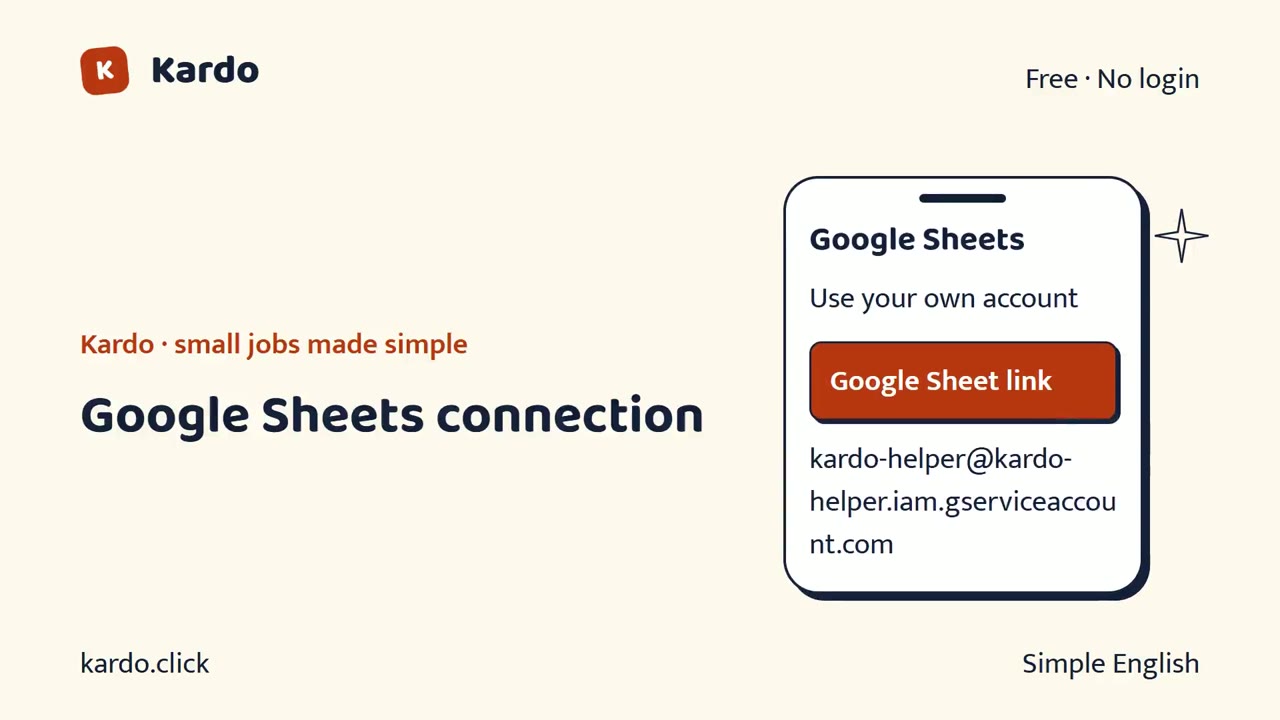
Let us connect Google Sheets to Kardo.
The link of your Google Sheet, shared with Kardo.
Kardo adds a new row for every entry.
These are drawings showing the steps.
Use your own account.
Open your Google Sheet.
Tap Share.
Add the Kardo email shown below as Editor.
The helper email is shown on screen.
Copy it exactly.
Copy the sheet link and paste it here.
Kardo can show entries on your private page and email you.
Keep every secret key private.
Check the details before you continue.
Kardo tests with sample data.
No real message goes out during the test.
Save your private link to change or pause later.
Visit kardo dot click.
Read the words
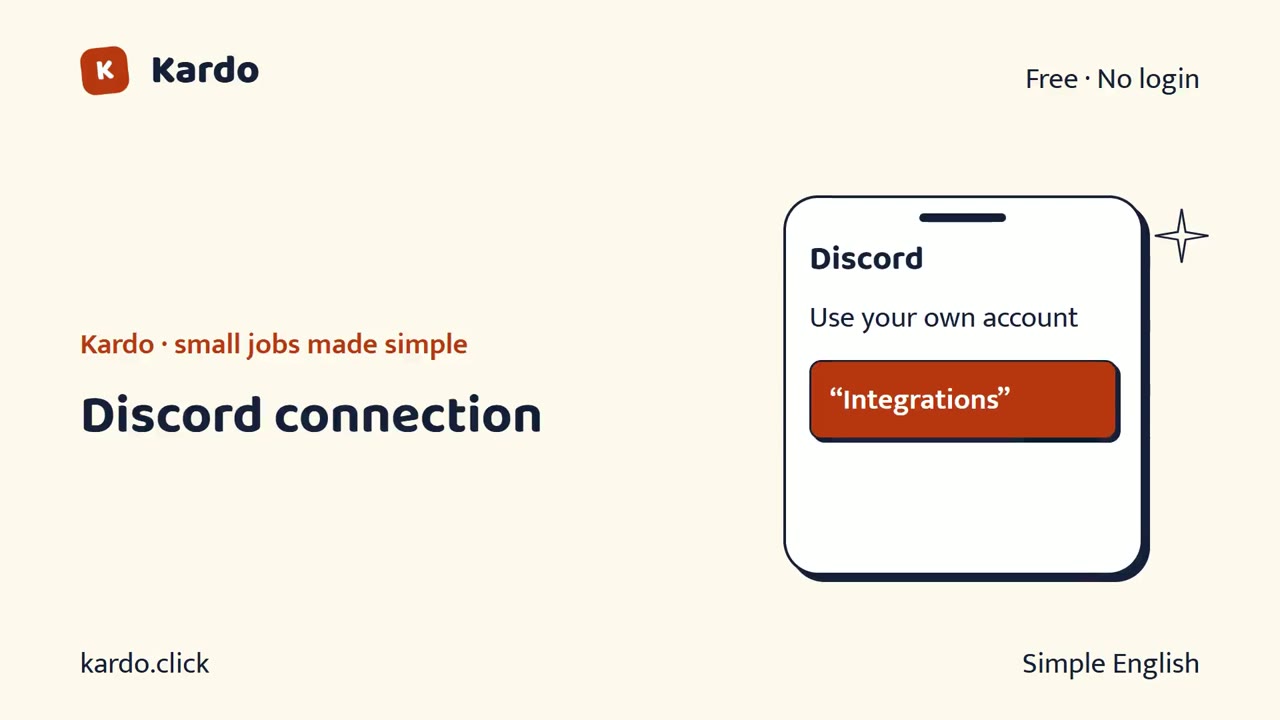
Let us connect Discord to Kardo.
The link of your Discord channel.
Kardo posts messages in that channel.
These are drawings showing the steps.
Use your own account.
Open your Discord server.
Open channel settings, then the connections option shown on screen.
Make a new link for Kardo and copy it.
Paste it here and tap "Check my key".
Kardo can email you instead.
Keep every secret key private.
Check the details before you continue.
Kardo tests with sample data.
No real message goes out during the test.
Save your private link to change or pause later.
Visit kardo dot click.
Read the words
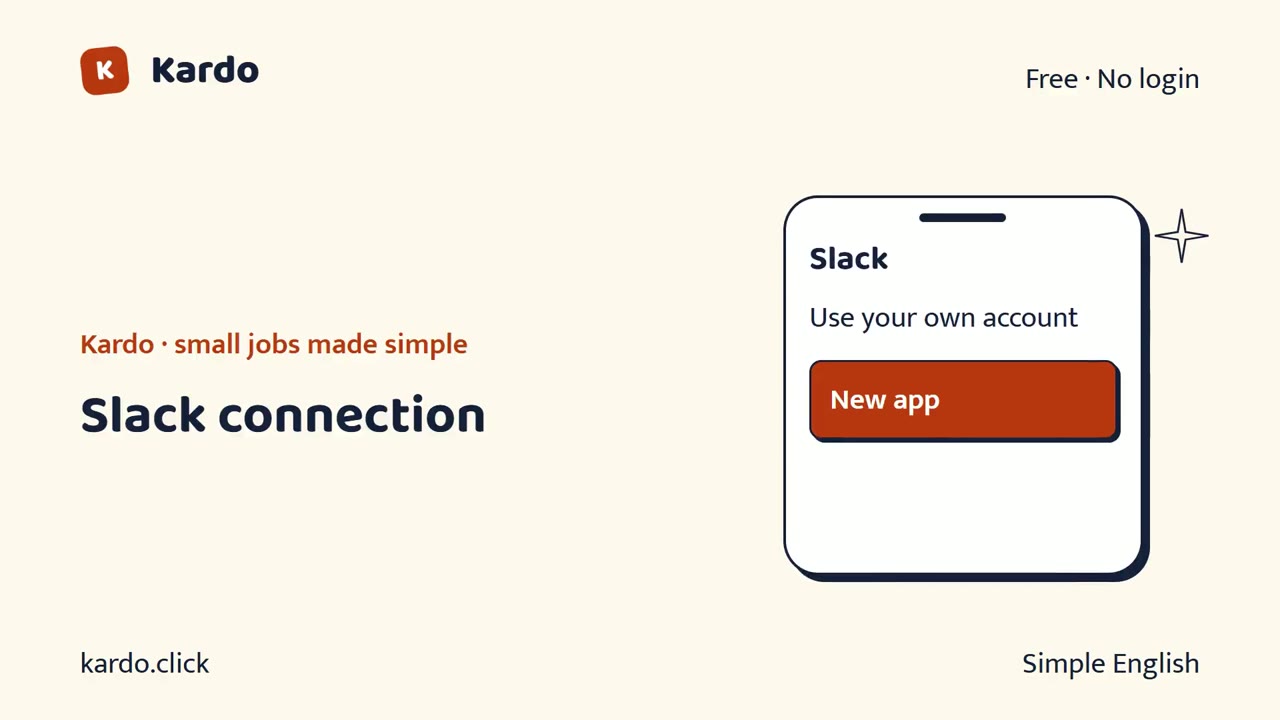
Let us connect Slack to Kardo.
The message link of your Slack channel.
Kardo posts messages in that channel.
These are drawings showing the steps.
Use your own account.
Open the Slack app settings and make a new app.
Turn on the incoming message option shown on screen.
Add a new link for your channel and copy it.
Paste it here.
Kardo can email you instead.
Keep every secret key private.
Check the details before you continue.
Kardo tests with sample data.
No real message goes out during the test.
Save your private link to change or pause later.
Visit kardo dot click.
Read the words
Let us connect Notion to Kardo.
A secret key from Notion and your page link.
Kardo adds new notes under that page.
These are drawings showing the steps.
Use your own account.
Open your Notion connection settings and make a new connection.
Copy the secret key.
Open your page → ••• → Connections → add it.
Paste the key and page link here.
Kardo can email you instead.
Keep every secret key private.
Check the details before you continue.
Kardo tests with sample data.
No real message goes out during the test.
Save your private link to change or pause later.
Visit kardo dot click.
Read the words
Let us connect Airtable to Kardo.
A personal key from Airtable, base ID and table name.
Kardo adds a new row for every entry.
These are drawings showing the steps.
Use your own account.
Open the personal key settings in Airtable.
Make a key with "data.records:write" for your base.
Copy it, and the base ID from your base link.
Paste all three here.
Kardo can show entries on your private page.
Keep every secret key private.
Check the details before you continue.
Kardo tests with sample data.
No real message goes out during the test.
Save your private link to change or pause later.
Visit kardo dot click.
Read the words
Let us connect WhatsApp Business to Kardo.
Your WhatsApp Business details from Meta: number ID, account ID and a permanent key.
WhatsApp only allows business messages through its official service.
These are drawings showing the steps.
Use your own account.
Go to developers.facebook.com and make a Business app.
Add WhatsApp to it.
Copy the Phone number ID and the account ID.
In Business Settings, make a system user and a permanent key.
Make a message in WhatsApp Manager and wait for approval.
Paste everything here.
Meta must check your business and approve your message.
This can take 1 to 5 days.
Until it is approved, Kardo can send an email or Telegram message instead.
You can switch later with one tap.
Keep every secret key private.
Check the details before you continue.
Kardo tests with sample data.
No real message goes out during the test.
Save your private link to change or pause later.
Visit kardo dot click.
Read the words
Let us connect X (Twitter) to Kardo.
Four keys from your X developer account.
X allows posting only with your own developer keys.
These are drawings showing the steps.
Use your own account.
Go to developer.x.com and sign in.
Make a project and an app with "Read and write".
Make the consumer keys and the access keys.
Add credit to pay per post.
Paste all four here.
X charges about ₹1.30 for each post.
You pay X directly.
Kardo can remind you with the post ready to copy.
Keep every secret key private.
Check the details before you continue.
Kardo tests with sample data.
No real message goes out during the test.
Save your private link to change or pause later.
Visit kardo dot click.
Read the words
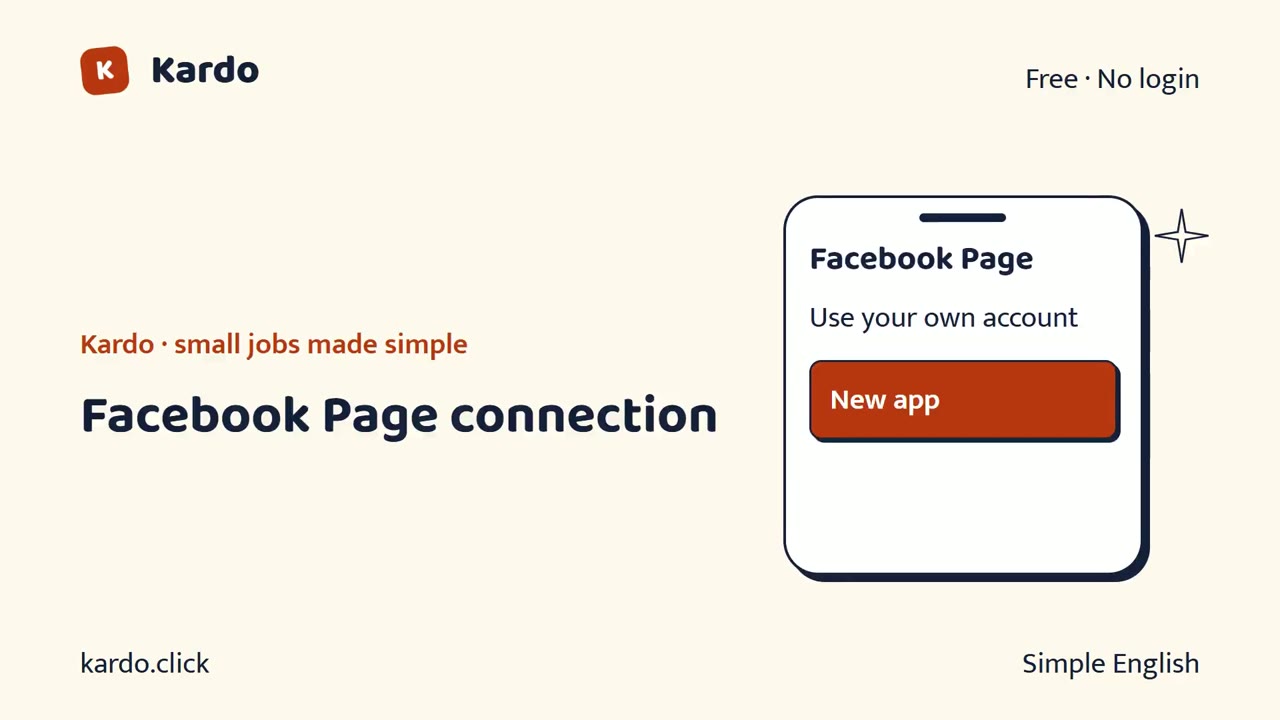
Let us connect Facebook Page to Kardo.
Your Facebook Page ID and a Page key.
Facebook allows page posts only with a key you give.
These are drawings showing the steps.
Use your own account.
Go to developers.facebook.com and make an app.
Add "pages_manage_posts" permission.
Use Graph Explorer to get a Page key for your page.
Paste the Page ID and key here.
Meta may need to check your business first.
This can take a few days.
Kardo can remind you with the post ready to copy.
Keep every secret key private.
Check the details before you continue.
Kardo tests with sample data.
No real message goes out during the test.
Save your private link to change or pause later.
Visit kardo dot click.